 HarutoStudio
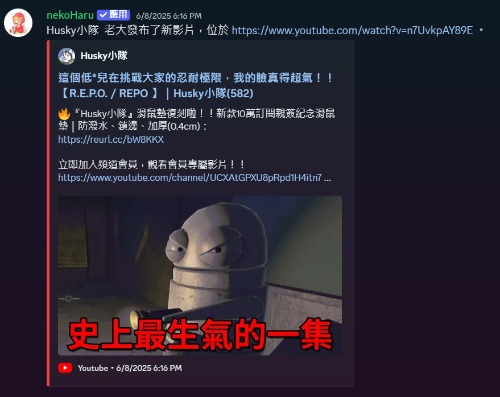
Want automatic YouTube upload notifications in your Discord server? nekoHaru, a management bot with a Chinese-language interface, sends YouTube video updates to a channel you choose so you never miss a new upload. It is easy to use and free to install, with a Chinese-language dashboard and management tools to make running your community easier.
Why send YouTube video notifications to Discord?
For community managers, content creators, and fan groups, sharing new videos promptly is a key way to encourage interaction. Automatic notifications let you:
- Show new videos to all members right away
- Avoid posting links manually
- Maintain steady channel viewership
- Notify everyone quickly about events, streams, or updates
Once you set the YouTube channel link, the bot automatically sends new-video updates to the designated channel so members do not miss new content.
How to invite the bot to your server
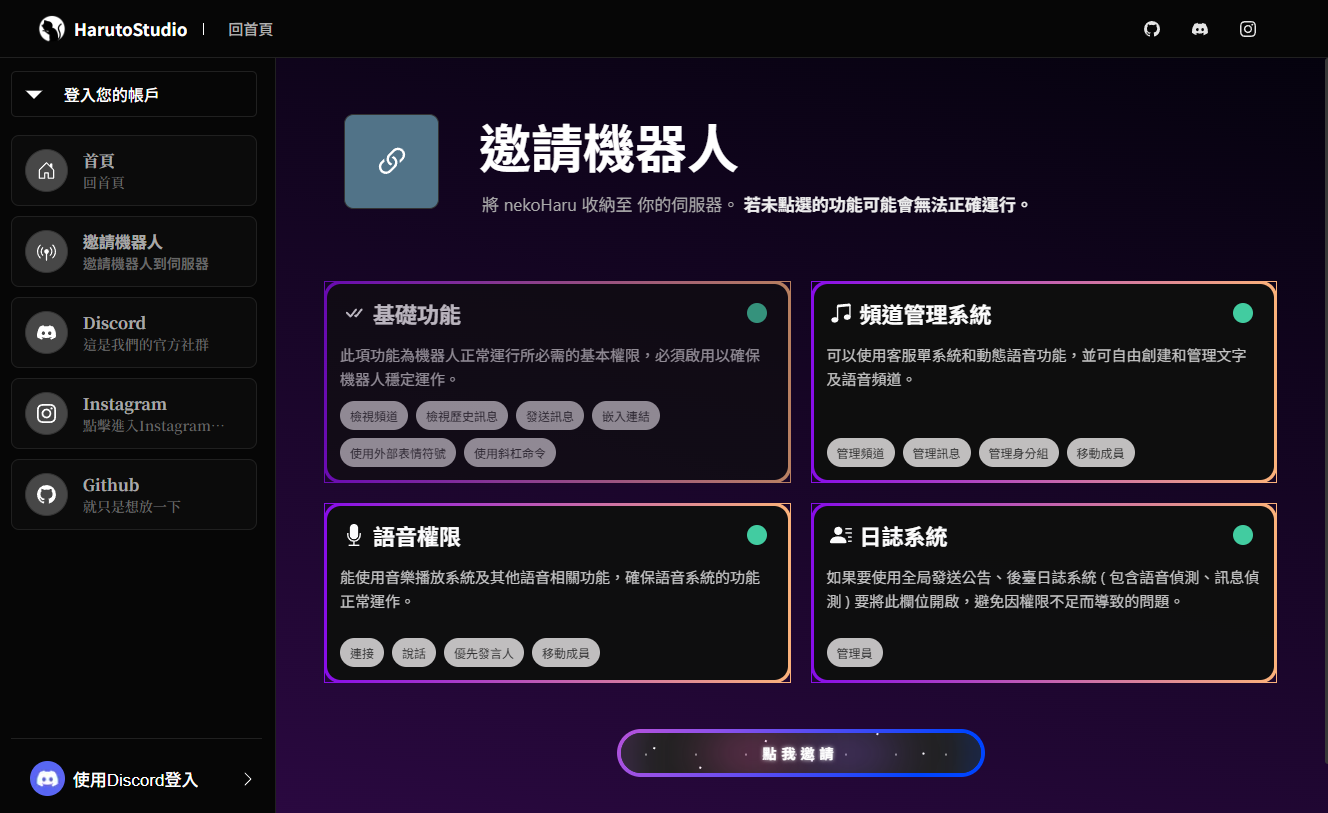
1️⃣ Open the bot invitation page.
2️⃣ Choose your Discord server.
3️⃣ Grant the requested permissions. Keeping the defaults is recommended to avoid affecting functionality.
4️⃣ After authorization, the bot appears in your member list.
Then return to the dashboard to configure YouTube notifications and management features!
How to set up YouTube upload notifications
Follow these steps to have the bot send upload notifications automatically to your Discord channel:
1️⃣ Sign in to the dashboard:
Open the dashboard, find the “Sign in” button at the bottom left, and sign in with your Discord account.
2️⃣ Select a server:
After signing in, the left sidebar lists the Discord servers you have invited the bot to. Select the server you want to configure.
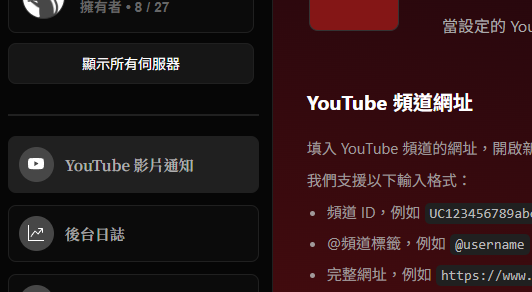
3️⃣ Open “YouTube video notifications”:
After selecting a server, choose “YouTube video notifications” from the management menu on the left.
4️⃣ Add a YouTube channel to follow:
Enter the YouTube channel link in the input field. Channel IDs, @handles, and full URLs are supported. Click the “+” button to the right to add it.
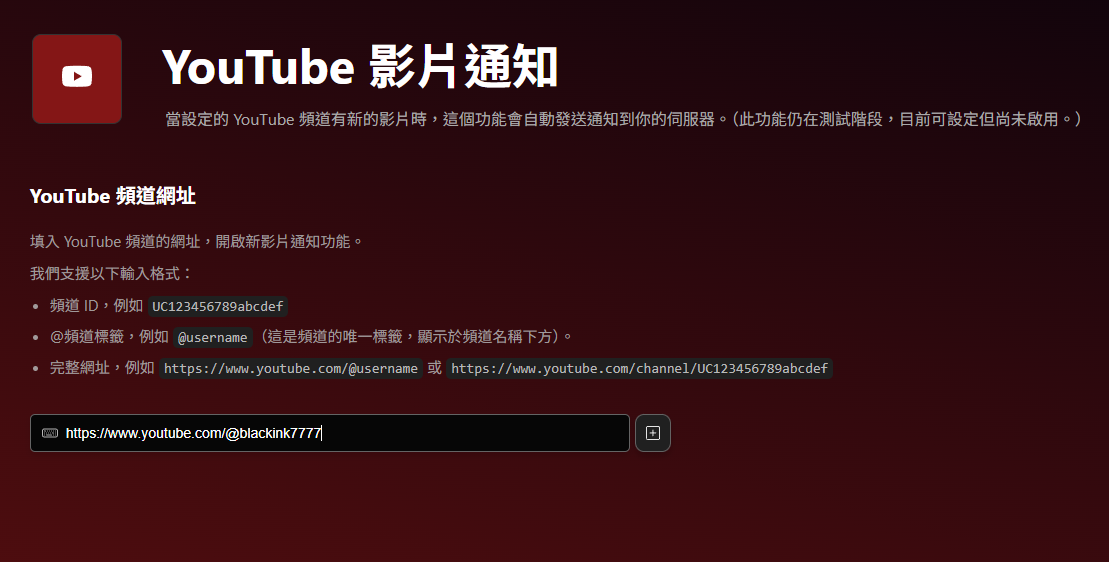
5️⃣ Preview the channel and choose notification types:
A preview card appears below with the channel name, image, and a notification-type menu, such as regular videos, premieres, or livestreams.
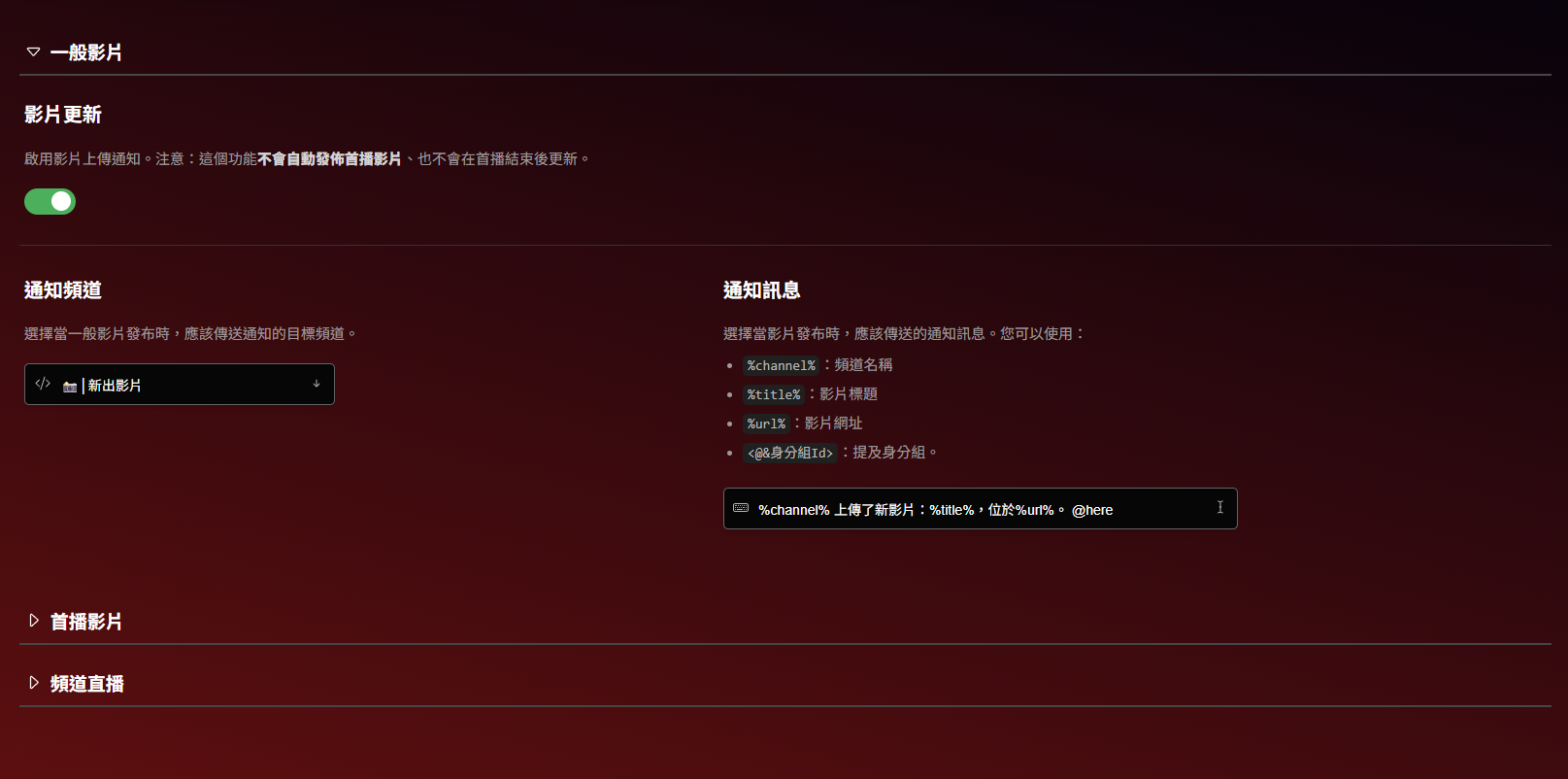
6️⃣ Save settings:
Be sure to click “Save settings” at the bottom of the page so the bot starts tracking the channel and sending notifications to Discord.
Once these steps are complete, new uploads and streams automatically generate notifications in your chosen Discord channel. You no longer need to post links manually or worry about members missing updates.
If you do not click “Save settings,” nothing happens. The bot will assume you were just browsing :)
Frequently asked questions
❓ Does this bot cost money?
✅ It is free to use. All features can be enabled with no additional charge.
❓ Do I need programming skills?
✅ No. A complete Chinese-language dashboard and guides walk you through the setup.
❓ Can I follow multiple YouTube channels?
✅ Yes. Each server can follow up to 3 YouTube channels.
❓ Are there other management features?
✅ Yes. Alongside YouTube notifications, there are Twitch stream notifications, message deletion/edit logs, voice join/leave logs, scam protection (Message Guardian), custom voice channels, and a private messaging system.
Keep your Discord server up to date with new YouTube videos. Try this free YouTube notification bot today!
This article was translated from Traditional Chinese by AI. Meaning or wording may differ; please refer to the Traditional Chinese original as the authoritative version.