 HarutoStudio
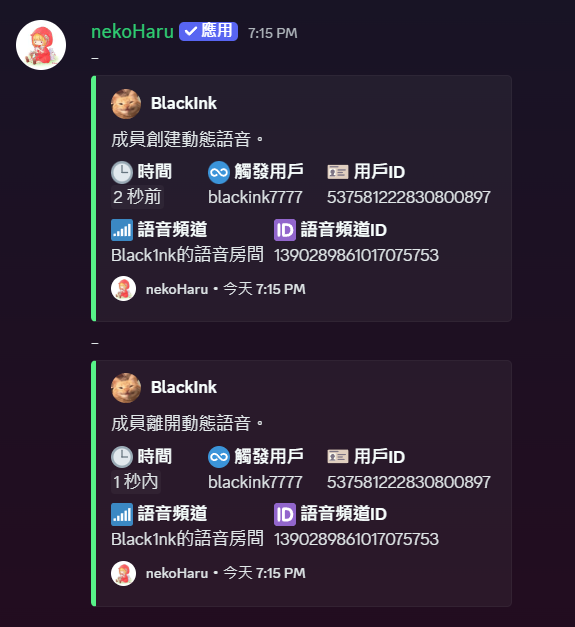
Does someone in your Discord server keep joining and leaving voice channels just to get attention? Or do people come and go during events until nobody remembers who attended? You no longer need handwritten attendance lists or arguments based on memory. nekoHaru, a logging bot built for Discord administrators, automatically records voice joins and leaves in a clear history you can check later.
What are voice activity logs?
Think of them as your Discord access log. Whenever someone joins or leaves a voice channel, the bot records:
- Who joined which channel
- When they joined and left
- A complete activity timeline
Without staying online around the clock, you can see who attended an event or who slipped into a voice chat late at night to disturb others.
Tip: If your server uses dynamic voice channels, combine this with the bot’s “Custom voice channels” feature for more complete join/leave logs.
Message deletion and edit logs, too
Some people like to delete messages immediately or quietly change what they said. The bot can help keep a record:
- Save the contents of deleted messages
- Show the before-and-after versions of edits
- Identify the author, time, and channel
No more headaches over “deleted message” placeholders. When a dispute arises, you can quickly review what happened.
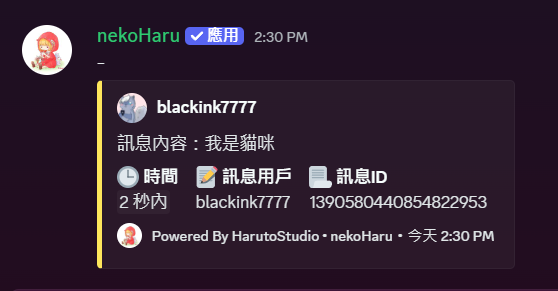
Note: Logging starts only after the bot joins the server. It does not retrieve conversations from before it joined.
How to enable it
Just follow these steps:
1️⃣ Invite the bot to your Discord server.
2️⃣ Open the dashboard and sign in.
3️⃣ Select your server.
4️⃣ Choose “Server logs” from the left menu.
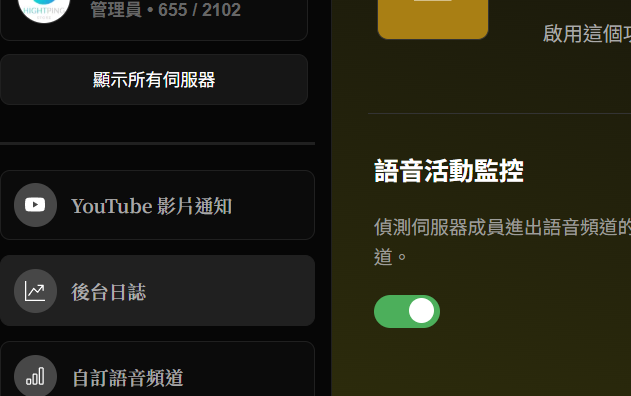
5️⃣ Enable “Voice activity monitoring” and choose the destination under “Voice log channel.”
6️⃣ To log edited or deleted messages as well, enable “Message edit/deletion monitoring” and choose the “Message log channel.”
7️⃣ Turn “Detailed view” on if you want more fields and before-and-after differences. Leave it off for a compact log format.
8️⃣ Click “Save settings,” and you are done.
The two types of logs can go to different channels. Private channels visible only to administrators are recommended for both.
Reminder: If you forget to click “Save settings,” the bot will assume you were just sightseeing and will not record anything :)
If you want a more organized Discord server where members cannot dodge responsibility, try this free logging bot.
Manage your community easily without missing the details. Give it a try today!
This article was translated from Traditional Chinese by AI. Meaning or wording may differ; please refer to the Traditional Chinese original as the authoritative version.